
Sincronizar regadera inteligente U by Moen con su teléfono inteligente
Requisitos
- iOS 14.0 o posterior
Android: 5.0 y más - Red de wifi de 2.4 GHz
Cómo sincronizar su regadera inteligente U by Moen con su teléfono inteligente
Para sincronizar su regadera inteligente con su teléfono inteligente, tendrá que descarga la aplicación de regadera inteligente U by Moen a su teléfono e iniciar sesión en su cuenta. Si aún no tiene una cuenta, debe crear una cuenta nueva. Please also make sure you are on the latest version of the U by Moen Smart Shower app by visiting the app store and downloading any pending updates.
The router you are connecting to must be compatible with 802.11 b/g/n and work on 2.4 GHz with WPA/WPA2 security. Make sure the network you are connecting to is not hidden and has a password. If you are connecting to a mesh router or your 2.4 GHz and 5 GHz networks are named the same, you may need to temporarily disable your 5 GHz network while connecting. Please refer to your router's documentation or contact your internet service provider for more information.
To connect multiple smart phones, log in using the same account you used to synced your Moen Smart Shower.
The below instructions show how to connect using iPhone and Android. If you are using an iPhone you can connect using Apple HomeKit or standard setup. If you choose to connect using standard setup, you can connect to Apple HomeKit at any time after connecting your Smart Shower to your Home Wi-Fi.
iPhone - Standard Setup (not connecting using Apple HomeKit): |
|---|
|
Connect your iPhone to your home 2.4 GHz WiFi network. |
|
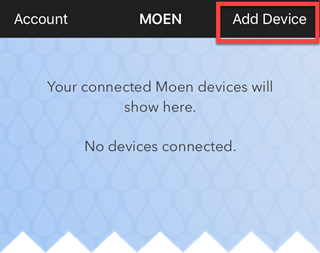
After signing into the U by Moen Smart Shower app, tap on Add Device.
|
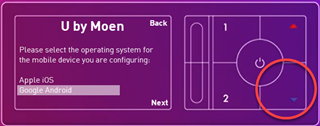
ACTIVATE CONTROLLER WIFITo pair your shower controller to the U by Moen Smart Shower app, you’ll first connect to a temporary wireless connection created by your U by Moen Smart Shower. To activate the wireless network, press and hold the up arrow on the controller for 5 seconds.
After pressing and holding the temperature up button, you may see one of three screens depending on your controller firmware version: 1) PIN ScreenIf a 4-digit or 6-digit PIN appears immediately after pressing the temperature up button, continue to CONNECT TO MOEN WIFI.
2) Setup OptionsIf you see Standard Set Up or Advanced Set Up, use the temperature buttons to highlight Standard Set Up (Recommended), then press the bottom outlet button to continue.
Once you see a 4-digit or 6-digit PIN on the shower controller screen, tap Standard Setup (Recommended) in the U by Moen Smart Shower app.
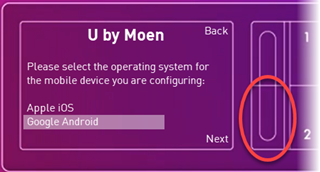
3) Device Type SelectionIf you see options for Apple iOS and Google Android, use the temperature buttons to select Google Android, then press the bottom outlet button to continue.
Once you see a 4-digit or 6-digit PIN on the shower controller screen, tap Standard Setup (Recommended) in the U by Moen Smart Shower app.
|
CONNECT TO MOEN WIFIOn your iPhone, connect to the Moen Smart Shower wireless network named "Moen_10xxxxx" in Settings > Wi-Fi.
NOTA: When connecting to the Moen Smart Shower network, you may receive a message saying there is no internet and if you would like to stay connected to this network. Make sure you select to stay connected to this network before continuing. Return to the U by Moen Smart Shower app and tap Next.
Turn off Private Address for the Moen Wi-Fi (if needed) and then tap Next.
|
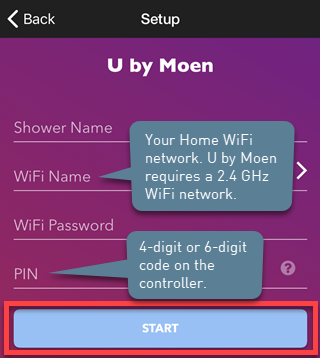
SETUPFill out the requested information and then tap Start.
The router you are connecting to must be compatible with 802.11 b/g/n and work on 2.4 GHz with WPA/WPA2 security. Make sure the network you are connecting to is not hidden and has a password. If you are connecting to a mesh router or your 2.4 GHz and 5 GHz networks are named the same, you may need to temporarily disable your 5 GHz network while connecting. Please refer to your router's documentation or contact your internet service provider for more information. |
|
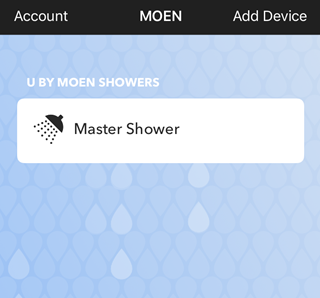
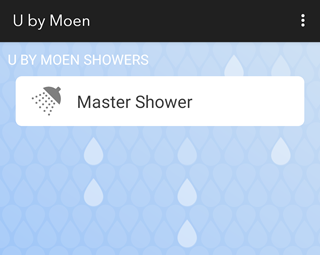
Once the shower controller is successfully added, the Smart Shower controller will show a blue screen with the date/time and the shower will be listed in the U by Moen Smart Shower app.
|




iPhone - Setup with Apple Home |
|---|
|
Connect your iPhone to your home 2.4 GHz WiFi network. |
| After signing into the U by Moen Smart Shower app, tap on Add Device.
|
ACTIVATE QR CODEOn the U by Moen Smart Shower controller, press and hold the Temperature Up button on the main blue raindrop screen.
After pressing and holding the temperature up button, you may see one of three screens depending on your controller firmware version: 1) Setup OptionsIf you see Standard Set Up or Advanced Set Up, use the temperature buttons to highlight Advanced Setup, then press the bottom outlet button to continue.
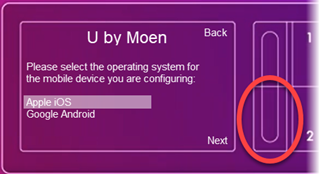
2) Device Type SelectionIf you see options for Apple iOS and Google Android, use the temperature buttons to select Apple iOS, then press the bottom outlet button to continue.
3) PIN ScreenIf a 4-digit or 6-digit PIN appears right away, please use the "iPhone - Standard Setup (not connecting using Apple HomeKit)" instructions above to connect. If you would like to connect to Apple HomeKit and you have a HomeKit compatible controller, you can connect to Apple HomeKit at any time after connecting your Smart Shower.
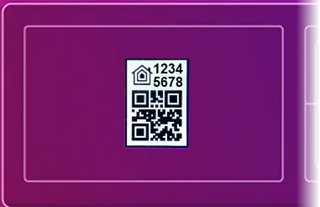
El controlador mostrará un código QR después de que seleccione "Next".
NOTA: If you are unable to connect using the QR code or do not want to connect using Apple HomeKit, you can use the "iPhone - Standard Setup (not connecting using Apple HomeKit)" instructions above to connect. |
|
Go to the U by Moen Smart Shower app and select Setup with Apple Home.
|
|
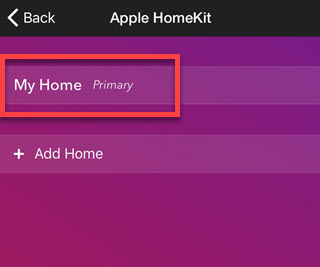
In the U by Moen Smart Shower app, tap on the Primary home or create a new home for by tapping on "+ Add Home".
|
|
Scan the QR code on the controller screen by lining up the camera to the QR code.
|
|
Change settings if needed in the U by Moen Smart Shower app and select Done when completed. |
|
Once the shower controller is successfully added, the controller will show a blue screen with the date/time and the Smart Shower will be listed in the app. |



Android: |
|---|
|
Connect your smart phone to your home WiFi network (2.4 GHz only). |
|
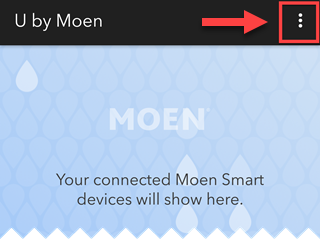
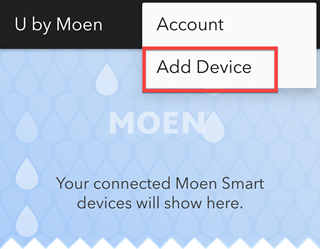
After signing into the app, tap on the menu icon (3 vertical dots) in the upper right corner and then tap on Add Device.
|
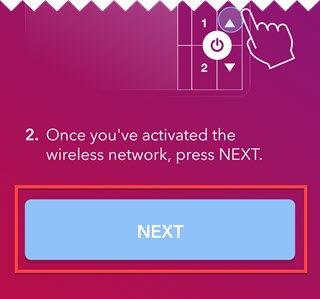
ACTIVATE CONTROLLER WIFITo pair your shower controller to the U by Moen Smart Shower app, you’ll first connect to a temporary wireless connection created by your U by Moen Smart Shower. To activate the wireless network, press and hold the up arrow on the controller for 5 seconds.
If you see a 4- or 6-digit pin, press NEXT in the U by Moen Smart Shower app.
If you do not immediately see a 4- or 6-digit pin, select Google Android or Standard Set Up (Recommended) on the controller and then press the NEXT button in the U by Moen Smart Shower app.
Once you have activated the wireless network and see a 4- or 6-digit pin on the Moen Smart Shower controller, press NEXT in the U by Moen Smart Shower app.
|
CONNECT TO MOEN WIFINext, connect to the Moen shower wireless network, “Moen_1######” (For example, "Moen_1015503"). NOTA: When connecting to the Moen Smart Shower network, you may receive a message saying there is no internet, "Internet may not be available", and/or if you would like to stay connected to this network. Make sure you select to stay connected to this network before continuing. Return to the U by Moen Smart Shower app and press NEXT once you’ve connected to the Moen WiFi.
|
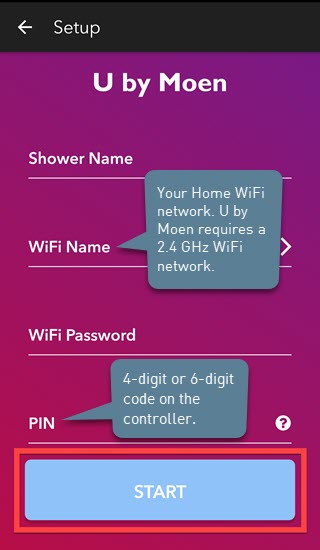
SETUPFill out the requested information and then tap Start.
The router you are connecting to must be compatible with 802.11 b/g/n and work on 2.4 GHz with WPA/WPA2 security. Make sure the network you are connecting to is not hidden and has a password. If you are connecting to a mesh router or your 2.4 GHz and 5 GHz networks are named the same, you may need to temporarily disable your 5 GHz network while connecting. Please refer to your router's documentation or contact your internet service provider for more information. |
|
Once the shower controller is successfully added, the Smart Shower controller will show a blue screen with the date/time and the shower will be listed in the U by Moen Smart Shower app.
|

Para obtener más información sobre Smart Shower Moen, visite https://solutions.moen.com/U_by_Moen_Smart_Shower.
¿Necesita asistencia técnica adicional?
Contact Us or Call Moen Smart Water Support directly at 1-800-289-6636